|
User Manual for Barco F35 AS3D WUXGA Multimedia Projector Click to enlarge the picture
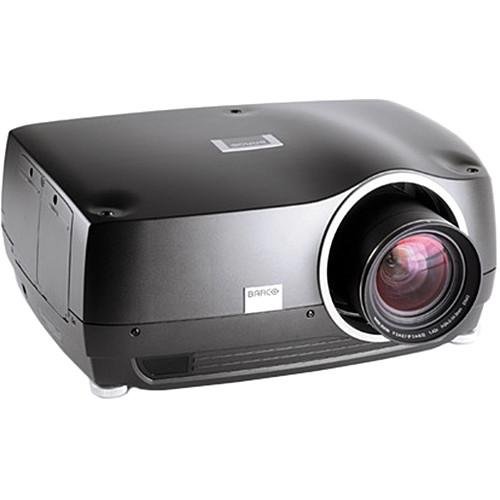 Contents of the user manual for the Barco F35 AS3D WUXGA Multimedia Projector
- Product category: Multimedia Projectors Barco
- Brand: Barco
- Description and content of package
- Technical information and basic settings
- Frequently asked questions – FAQ
- Troubleshooting (does not switch on, does not respond, error message, what do I do if...)
- Authorized service for Barco Multimedia Projectors
|
User manual for the Barco F35 AS3D WUXGA Multimedia Projector contain basic instructions
that need to be followed during installation and operation.
Before starting your appliance, the user manual should be read through carefully.
Follow all the safety instructions and warnings, and be guided by the given recommendations.
User manual is an integral part of any Barco product,
and if it is sold or transferred, they should be handed over jointly with the product.
Following the instructions for use is an essential prerequisite for protecting
health and property during use, as well as recognition of liability on the part of the manufacturer
for possible defects should you make a warranty claim. Download an official Barco user manual in which you will find instructions on how to install, use, maintain and service your product.
And do not forget – unsuitable use of a Barco product will considerably shorten its lifespan!
|
Product description The F35 AS3D WUXGA Multimedia Projector from Barco (with lens available separately) is a professional installation projector adaptable to a range of applications requiring 24/7 operation. Suitable fields include scientific and seismic visualization, medical imaging, high resolution display of financial data, video conferencing, collaboration suites, simulation and visitor attractions across different industries such as oil and gas, automotive, healthcare, defense and aerospace, and media and entertainment.
The projector features a brightness of up to 4000 lumens (depending on settings), and has a native resolution of 1920 x 1200. This is a 16:10 format. In addition to its native aspect ratio and resolution, through internal scaling the F35 can accommodate a wide range of formats, from 480p SD all the way up to 2560 x 1600.
The F35 features connectivity to accommodate a variety of sources. There is one HDMI and two DVI inputs for HDTV and digital computer sources. Two VGA ports for analog computer sources or for integration with existing A/V installations. There is a component and an S-video input, which between them cover most legacy analog video sources, whether SD or HD. I/O connectivity can be expanded further using separately available X-PORT modules.
For remote operation, there is an Ethernet port that enables control across a local network, and there is an RS-232 port for integration with automation systems such as Crestron. Two USB ports enable direct operation from a computer. There are two 3.5mm 12V LVC trigger ports so that the projector can actuate another appliance in an A/V integration, such as a motorized projection screen. Finally, there is a 3.5mm wired remote jack, allowing you to use an external IR receiver for installations where direct line-of-sight communication with the projector's built-in IR receiver isn't possible. Interchangeable Lens Design (Lens Not Included) - Featuring an interchangeable lens design, the F35 is compatible with a range of separately available lenses, including short throw, zoom, and long throw options. Compatible lenses include:
- Standard Zoom (EN11)
- Ultra Wide Angle Fixed (EN12)
- Wide Angle Zoom (EN13)
- Long Throw Zoom (EN14)
- Wide Angle Fixed (EN15)
- Extra Long Throw Zoom (EN16)
- High Resolution Standard Zoom (EN41)
- High Resolution Wide Angle Fixed (EN42)
- High Resolution Wide Angle Zoom (EN43)
- High Resolution Long Throw Zoom (EN44)
- High Resolution, Long Focus Ultra Wide Angle Zoom (EN45)
- High Resolution, Short Focus Ultra Wide Angle Zoom (EN46).
- High Resolution Super Wide Fixed (EN47)
- High Resolution IR Optimized, Wide Angle Zoom (NV43)
DLP Imaging System - The F35 features a DLP imaging device with a VizSim Bright color wheel, which offers better contrast and color reproduction than many comparable LCD-based systems. In addition, DLP technology is unaffected by UV light yielding more consistent performance over its lifetime than many alternative technologies. Its performance is further enhanced by 10-bit per channel image processing for smoother color gradations that 8-bit systems.
The Right Color Wheel for Your Configuration - The projector is available with a range of color wheel options, including High Brightness, Graphics, or VizSim, each with specific characteristics. As the VizSim color wheel focuses on color quality, it lowers color cross-talk and contamination, and reduces artifact. The Graphics version offers a lower saturation, but higher brightness for general AV use, and the High Brightness option provides high-brightness while retaining accurate color reproduction. This particular projector features the VizSim Bright color wheel.
RealColor Color Management - RealColor is a color management calibration suite that enables edge blending for an unlimited number of projectors, designed to ensure uniform images for multichannel installations. It provides a quick way to calibrate and set up perfect images, allowing you to adjust them simply by changing characteristics such as color temperature. RealColor works by mathematically calculating each color independently.
VIDI Lamp Technology - Philips' VIDI technology enables dynamic lamp driving over time, and enhances image quality through reducing grey scale artifacts, boosting color saturation, increasing contrast, and improving lamp stability. Unlike typical non-VIDI based projectors, the lamp power is digitally controlled, as is its performance over time.
X-PORT Expandability - In addition to the built-in I/O ports, custom I/O configurations, including 3G-SDI in and out, can be achieved by installing separately available modular expansion boards.
Hot-Swap Lamps - In addition to the continuous operation mode, lamps can be replaced while the projector is operating. Should one lamp need replacement or if one fails during a presentation, the projector will continue running at lower brightness using the second lamp.
AS3D Equipped - The F35 AS3D a features native refresh rate of up to 120 Hz in mono or Active 3D stereo, without compression. It uses Dual-Link DVI for full 330 MHz bandwidth imaging.
Smear Reduction Processing (SRP) - Features flicker-free Smear Reduction Processing (SRP) so that no external filters or shutters are needed. All processing is not only done internally, it's also fully adjustable and configurable. Combined with high frame rates up to 120 Hz, this helps ensure a smear-free image at any resolution and with fast-moving content.
In the Box Barco F35 AS3D WUXGA Multimedia Projector (No Lens, Black Metallic) Limited 90-Day/500 Hours Warranty on Lamp Limited 3-Year Warranty on Projector Brochure PDF 412.2kb Table of Contents
|
Upload User Manual
Have you got an user manual for the Barco F35 AS3D WUXGA Multimedia Projector in electronic form? Please send it to us and help us expand our library of instruction manuals.
Thank you, too, on behalf of other users.
To upload the product manual, we first need to check and make sure you are not a robot. After that, your "Submit Link" or "Upload File" will appear.
Technical parametersBarco R9023093 Specs | | | Native Chip Resolution | 1920 x 1200 (WUXGA) | | Supported Resolutions | WUXGA | | Max Brightness | 4000 Lumens | | Aspect Ratio | Native: 16:10 | | Contrast Ratio | 8000:1 | | DLP Link 3D | Yes | | Scan | Horizontal: 10 to 150 kHz
Vertical: 48 to 190 Hz | | | | Inputs/Outputs | 2 x DVI-I Video (Input)
2 x HDMI Video (Input)
2 x VGA (DE-15) Video (Input)
1 x S-Video (4-Pin DIN) Video (Input)
1 x RS-232C (Unspecified Connector) Control (Input)
2 x 12 V Trigger Control (Input)
1 x 1/8" (3.5 mm) Mini Control (Input)
2 x USB Control (Input) | | | | Lamp Power | 300 W | | Expected Lamp Life | Medium Brightness: 2000 Hours
Low Brightness: 2500 Hours | | Power Consumption | Full Brightness: 815 W | | Temperature | Operating
50 to 104°F (10 to 40°C)
Humidity: 20 - 80%
Storage
-4 to 140°F (-20 to 60°C)
Humidity: 10 - 90% | | Dimensions (W x H x D) | 20.1 x 8.8 x 14.8" / 510.0 x 223.0 x 376.0 mm | | Weight | 28.0 lb / 12.7 kg |
Rating80% users recommend this product to others. And what about you?

This product has already been rated by 72 owners. Add your rating and experience with the product.
Discussion
 Ask our technicians if you have a problem with your settings,
or if anything is unclear in the user manual you have downloaded.
You can make use of our moderated discussion.
The discussion is public and helps other users of our website who may be encountering similar problems.
Ask our technicians if you have a problem with your settings,
or if anything is unclear in the user manual you have downloaded.
You can make use of our moderated discussion.
The discussion is public and helps other users of our website who may be encountering similar problems.
The discussion is empty - enter the first post
Post a new topic / query / comment:
|
|
|
| Request for user manual |
You can’t find the operation manual you are looking for? Let us know and we will try to add the missing manual:
I’m looking for a manual / Request for manual
Current requests for instruction manuals:
Call Of Duty World War Two For Xbox...
controller stratus XL...
stratus XL...
smart whatch serie S11 42mm...
Allen & Heath SQ-6 manual...
|
| Discussion |
Latest contributions to the discussion:
AEW R 4100
Name: MAURICIO ANGARITA
Audio-Technica AEW-R4100 UHF Diversity Receiver for
AEW R 4100 has the mute function blocked and does not allow audio to pass. I tried several times to turn off the mute from the transmitter but it does nothing, the mute stays on. Solution?
Thank you...
Instructions for assembling the 2015 Forecast Image Master Consoles GC3-A
Name: mike elam
Forecast Consoles GC3-A ImageMaster Editing Console
Looking for instructions for assembling this console. ...
EMPTY TONER ERROR MESSAGE AFTER REPLACING TONER
Name: LINDA BAD YELLOW EYES
Brother TN223BK Standard-Yield Toner
I HAD TO CHANGE OUT ALL THREE TONERS DUE TO LEAKS IN THE YELLOW AND CYAN. AFTER I REPLACED THEM, THE MACHINE KEEPS GIVING ME AN EMPTY TONER ERROR MESSAGE. HELP!!...
PS480D 20/24 pin Switching 480W Power Supply
Name: swkargo
Logisys 480W Power Supply
This item states in can run -5vdc .It is NOT listed on the board or I beleive is r4 is missing the resitior. Any body have thid issue. Shawn
...
Help needed
Name: Ann Carter
SanDisk 1TB Extreme Portable USB 3.1
When I click the link to download the user manual for my Sandisk Extreme external hard drive, it gives me the manual for the LG Cricket. Can you please change the link so I can download the Sandisk manual and begin using this drive? Thank you....
|
|