User Manual for DgFlick Book Xpress Click to enlarge the picture
 Contents of the user manual for the DgFlick Book Xpress
- Product category: Photo Software DgFlick
- Brand: DgFlick
- Description and content of package
- Technical information and basic settings
- Frequently asked questions – FAQ
- Troubleshooting (does not switch on, does not respond, error message, what do I do if...)
- Authorized service for DgFlick Photo Software
|
User manual for the DgFlick Book Xpress contain basic instructions
that need to be followed during installation and operation.
Before starting your appliance, the user manual should be read through carefully.
Follow all the safety instructions and warnings, and be guided by the given recommendations.
User manual is an integral part of any DgFlick product,
and if it is sold or transferred, they should be handed over jointly with the product.
Following the instructions for use is an essential prerequisite for protecting
health and property during use, as well as recognition of liability on the part of the manufacturer
for possible defects should you make a warranty claim. Download an official DgFlick user manual in which you will find instructions on how to install, use, maintain and service your product.
And do not forget – unsuitable use of a DgFlick product will considerably shorten its lifespan!
|
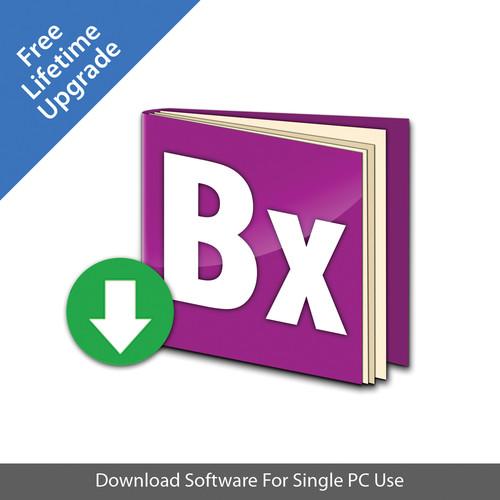
Product description Women of Influence: Katrin Eismann Read More Quickly and efficiently produce photo books with this downloadable standard edition of Book Xpress from DgFlick. This intuitive application enables automated creation of photo books using seven distinct template styles, with a host of other creative themes, effects, and other layout tools that can add an additional layer of individuality to your publication. Alternatively, complete manual control is also possible, along with the ability to use your own photographs or graphics as backgrounds, borders, or masks. Formatting can be set within industry standards for direct-to-print applications and a series of layout guides and alignment tools maintain consistency when sequencing and laying out series of images. Other useful tools include the ability to apply graphics and clip art to pages, add text and titles, and adjust the appearance of photos within the program. Once finished, finalized books can be exported as PDFs or JPGs, or shared directly to Facebook for showcasing your publication.
Further benefitting the editing process, the user interface and workspace designs are customizable to suit individual workflows. A Photo Quality indicator helps to ensure photos are of proper resolution for printing, and a used photo indicator will detect photos that have already been used in the project. Book projects can also be saved, including the associated source photos and graphics, for further editing on different computers, or for use as a future template. Define Book - Ready-to-Use Book Types and Sizes
- A variety of standard-sized book types and formats can be utilized, such as center pinning, perfect bind soft cover, perfect bind hardcover, perfect bind readycover, photo paper readycover, and wire-bound offset. Each of these formatting types and sizes are based on printing and binding industry standards.
- Auto Book Creation
- For quickly and automatically producing books, seven unique templates can be used. Each of the templates can be altered by selecting book size, type, theme, and the photos themselves. Once the selected photographs have been sequenced-by time, size, name, or manually sorted-the template can be applied and a finished book can be produced automatically.
- Smart Book: With this template, the individual photographs are the most important element of design, and each photograph will be sized to cover an entire page within the book. This full-bleed design does not stretch or distort any image, and rather crops imagery to fit the page format correctly.
- Grid Book: Multiple photographs will be laid out in a grid fashion, and the grids are automatically formed on the basis of how many images there are per page and size of the book. The number of images is manually selected and photos will not be stretched-to-fit. This template allows you to quickly arrange multiple photos across several selected pages.
- Perfect Book: This is a more creatively-styled template, and will layout multiple images per page in creative and differing compositions. In this template, the photographs will be laid out in the order in which they were made, and as such is well-suited to narratives or more thematic series of photographs.
- Easy Book: Offering a range of selectable options, this setting allows choosing from several distinct layouts, with the ability to choose different themes, layouts, and photo display options. Again, photos will be placed into the chosen composition without any squeezing or stretching.
- Creative Book: For more creative and unique books, this setting allows you to organize multiple photographs within each page, with unique photo layouts from page-to-page. A variety of layouts are selectable and photos will retain their original format within the design.
- Traditional Book: This template automatically sizes photographs to standard sizes, such as 4 x 6", 5 x 7", and 6 x 8", and then cleanly lays out the images in a straightforward, yet controllable, manner. Photos will be fit to the selected size without distorting the original format.
- Catalogue Book: This grid-based layout book automatically sets photos within pre-formatted grid types. The layout is formed on the basis of the number of photos per page and the overall size of the book. Additionally, this setting will incorporate the photo's file name beneath the image.
- Manual Photo Book Creation
- Beyond the range of automated templates, you can also manually layout your own book design. Themes can be created using provided backgrounds, clip art, borders, and other creative elements, and then saved for future use. Furthermore, you can also import your own graphics and décor to be used when designing your own templates.
- Reuse Photo Book Projects
- Once you have created a personalized Ready Book, this template can be applied to future products to maintain consistency and save time during the layout and design process.
- Project Mobility Between Machines
- Different projects, as well as Photos and Décor, can be saved as a backup or copied to another computer for further editing between different machines.
Compose Page - Grids, Guidelines, and Ruler
- Aiding in positioning images or elements, this tool helps with precise placement according to the width and height of the page. Guidelines are placed over the page, but will not be printed, and the lines can be moved or removed.
- On-Board Photo Cropping and Transforming
- An online photo crop feature allows you to quickly trim away unwanted portions of a source photo prior to incorporating it into the photo book.
- Online Zooming and Panning
- Photos can be transformed, or zoomed into and scrolled across, in order to bring more attention to specific regions of an image. A built-in quality indicator will warn you if the image quality falls below the required printing standards.
- Object-Based Alignment
- Photos can be aligned with respect to other photos or elements throughout the book. Also, an Auto-Align Layers command will automatically line-up layers based on similar content in different layers, such as detected corners or edges. Reference layers can be selected or automatically chosen, and multiple options are available for alignment points on different edges.
- Page-Based Alignment
- Using the full page as a reference, photos and elements can also be constrained to the edges of a page.
- Arrangement
- This tool permits manual control over the arrangement of photos, graphics, and other elements.
- Equal Space Between Objects
- This feature allows you to define the desired amount of space between photos in a grid arrangement, and then apply this spatial constraint to the remainder of images in order to create a balanced, equally-spaced composition.
- Rotate and Flip Mask and Border on Object
- Masks and border can be applied to imagery, and then flipped or rotated for a more creative appearance that simulates varying levels of visual depth or space.
- Lock and Unlock Photo
- Photos can be locked into place in order to maintain consistency throughout the designing process. However, for more personalized control, images can also be unlocked for a more free range of movement.
- Flip Page without Flipping Photo's Positioning
- The page's layout or design can be flipped horizontally or vertically without altering the actual orientation of the photos themselves.
- Edit Cover and Page Design
- Cover and page designs can be enhanced by filling them with different colors; selecting different backgrounds; setting frames, masks, or effects on the photos; applying clip art or graphics, or by adding text.
- Copy, Paste, and Clear Effects
- Any applied effects can be copied and pasted from one photo or page to another. Additionally, effects can also be removed using a single click.
Compose Object - Used Photo / Décor Indicator
- Benefitting the editing and photo selection process, this indicator will display which photos from a group have already been used in the book, and the number of occurrences they appear. Photos can also be sorted by whether or not they have been used within the project. Additionally, while re-editing previous pages or books, you can also easily locate the source image, border, or mask by right-clicking the image.
- Photo Quality Indicator
- A built-in quality indicator automatically determines whether or not the resolution of the photograph is high enough for the printing size selected. The visual indicator will display once a photos quality has dropped beneath the set quality standards.
- Swap Photo
- This intuitive tool quickly allows you to swap out images between pages due to issue with cropping or orientation (i.e. a horizontal photo has been placed within a vertical template).
- Use Photo as Background
- Beyond the hundreds of pre-installed backgrounds available, you can also use your own photographs as background images for a more personalized appearance.
- Create Your Own Workspace
- Within the user interface, all of the panels and docks are expandable and movable; allowing you to customize the workspace to benefit your own workflow.
Photo Editing - RGB Color Correction
- Photographs' color balance can be intuitively adjusted through the use of RGB color sliders.
- BCG Settings
- Dedicated sliders can be used to adjust photos' brightness, color, and gamma settings to enhance the overall clarity.
- Curves and Levels
- For more advanced control over brightness and contrast, curves and levels tools are available. These tools can be used to adjust the appearance of photos, masks, graphics, and other hues throughout the book project.
- Basic Effects on Photos
- Several creative effects can also be applied to imagery, including Blur, Colorize, Feather, Opacity, Tilt, Crop, and Rotate.
Décor - Over 40 Book Themes
- More than 40 ready-to-use themes are available, with the ability to combine different themes on different pages throughout a single book project.
- Background, Border, Mask, and Clip Art Collections
- Hundreds of borders, masking effects, backgrounds, and clip art graphics can be applied to projects, with 18 pre-generated ready tones for extended variety.
- Single-Click Ready Tones
- Regardless if working with pre-installed décor or with user-imported imagery, 18 ready tones can be generated per graphic for easy selecting of different backgrounds, masks, or borders.
- Title
- When adding text to a book project, the font, text size, alignment, and color of text can be adjusted. Presets are also available for streamlined application of text to projects. Additionally, multi-line text can also be added as well as captions or comments.
- Import Your Own Images
- Any JPEG or PNG file can be imported for use as a clip art graphic, background, mask, or border.
Print & Share - Save and Reuse
- Projects can be saved and reused multiple times, or, alternatively, it can also be used as a series of pre-selected templates for creating a similar, but unique, book. Projects, along with the photos and décor, can also be saved and transferred to different computers for further editing.
- Export as PDF
- Finished projects can be exported as a PDF file, with three distinct saving options:
- Export as a low resolution PDF: This low-res, lightweight option is ideal for sending the book project to others for preview prior to printing. This file size is not suited to printing.
- Export as print-ready PDF: This high-resolution PDF is well-suited to direct printing applications.
- Layered PDF: This option reserves the ability to make any color correction to the PDF prior to printing, making it ideal for sending to offsite printers.
- Export to JPG
- By exporting your book as an image file, you can embed select printer profiles for consistent printing with different printer types.
- Share to Facebook
- Books can be directly shared to Facebook from the software without the need to upload through a separate browser.
Other Features - User Interface Design
- An intuitive interface places all of the controls within easy reach for simple navigation. The interface's theme is light blue by default, but can be changed with a single click.
- Multi-Platform Support
- This program is compatible with both Mac and Windows operating systems, and updates are issued for both operating system types simultaneously.
- Get Photos from Facebook and Bluetooth
- Direct photo importing from Facebook is supported as well as the ability to directly import images from Bluetooth-enabled devices.
- Language Support
- A range of languages are available, including English, Spanish, French, Malay, and more. A variety of other languages are consistently added to the DgFlick Dictionary, which can be downloaded regularly to add support for additional languages. Furthermore, you can even add in your own languages to the dictionary for personalized support.
User Manual PDF 10.8mbccwxaadyrbze Table of Contents
|
Upload User Manual
Have you got an user manual for the DgFlick Book Xpress in electronic form? Please send it to us and help us expand our library of instruction manuals.
Thank you, too, on behalf of other users.
To upload the product manual, we first need to check and make sure you are not a robot. After that, your "Submit Link" or "Upload File" will appear.
Technical parametersDgFlick BS Specs | | | Supported OS Versions | Windows XP, Vista, 7 | | Storage Requirements | 1 GB | | Processor Requirement | 2.8 GHz Intel Pentium 4 | | | | Supported OS Versions | 10.6 - | | Storage Requirements | 1 GB | | | | RAM Requirement | 1 GB (Minimum)
2 GB (Recommended) |
Rating50% users recommend this product to others. And what about you?

This product has already been rated by 60 owners. Add your rating and experience with the product.
Discussion
 Ask our technicians if you have a problem with your settings,
or if anything is unclear in the user manual you have downloaded.
You can make use of our moderated discussion.
The discussion is public and helps other users of our website who may be encountering similar problems.
Ask our technicians if you have a problem with your settings,
or if anything is unclear in the user manual you have downloaded.
You can make use of our moderated discussion.
The discussion is public and helps other users of our website who may be encountering similar problems.
The discussion is empty - enter the first post
Post a new topic / query / comment:
|
|