|
User Manual for Eventide Elevate Bundle - Multiband Limiter and Clipper for Mixing and Mastering Click to enlarge the picture
 Contents of the user manual for the Eventide Elevate Bundle - Multiband Limiter
- Product category: Virtual Processor Plug-Ins Eventide
- Brand: Eventide
- Description and content of package
- Technical information and basic settings
- Frequently asked questions – FAQ
- Troubleshooting (does not switch on, does not respond, error message, what do I do if...)
- Authorized service for Eventide Virtual Processor Plug-Ins
|
User manual for the Eventide Elevate Bundle - Multiband Limiter contain basic instructions
that need to be followed during installation and operation.
Before starting your appliance, the user manual should be read through carefully.
Follow all the safety instructions and warnings, and be guided by the given recommendations.
User manual is an integral part of any Eventide product,
and if it is sold or transferred, they should be handed over jointly with the product.
Following the instructions for use is an essential prerequisite for protecting
health and property during use, as well as recognition of liability on the part of the manufacturer
for possible defects should you make a warranty claim. Download an official Eventide user manual in which you will find instructions on how to install, use, maintain and service your product.
And do not forget – unsuitable use of a Eventide product will considerably shorten its lifespan!
|
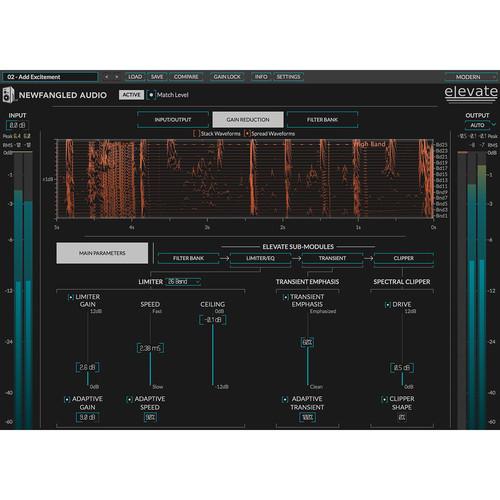
Product description Available for download, Eventide’s Elevate is a multiband limiter for mixing and mastering that aims for a natural sound. Using the same auditory filter bank as the EQuivocate Graphic EQ, the plug-in allows you to raise and control levels in a way that’s powerful, yet subtle. On the main parameters tab of the GUI, you’ll find controls for Limiter Gain, Speed, and Ceiling; these help you achieve the desired loudness. A transient section is on hand to preserve or emphasize the transient content of programmatic material being fed into the limiter. From here, audio is passed into the Spectral Clipper, in which you can add harmonic distortion to the mix for effect, if that’s your desire. Note that the drive control of this clipper stage works in conjunction with the gain parameter to dictate your overall level at the output.Elevate is technically a multiband limiter, as it uses the same filter-bank as EQuivocate, a graphic equalizer, which uses the Mel scale to better approximate how human beings hear and respond to frequency changes. Elevate uses artificial intelligence algorithms to handle the gain, transient variation, and speed of each band under the hood. You’ll be able to control the interdependency of these bands to some extent with the Adaptive Gain, Adaptive Speed, and Adaptive Transient parameters. You can effectively use the limiter in single-band mode by turning these adaptive controls all the way down, or by toggling them off entirely.In another window of the GUI, you’ll find access to the auditory filter bank, and here you can work on a band level by soloing bands to hear how they’re working, changing their center frequency or reducing/augmenting the number of bands in use at any one time. You also have further control over the individual bands in the Limiter/EQ module. Here you can adjust the gain of each individual band, all while watching the input gain, output gain, and gain-reduction metering provided for each band. In the Transient module, you’ll be able to adjust transient emphasis on a per-band basis. Other common limiter parameters, such as input control, output control, and auto-output for gain matching, is on hand, as are different visual meters to help you see what you’re doing.This software is compatible with Mac and Windows computers, and will work within AU, AAX and VST formats. An iLok account is required to activate Elevate, though you need not purchase their dongle. - Key Features at a Glance
-
- Analyzes and alters the gain, speed, and transients of each filter band in real time
- Includes presets by APS Mastering, Matt Lange, Jeremy Lubsey, Eric Beam, ROCAsound, Chris Tabron, and John McCaig
- Automatically adapts the attack, release, and look-ahead parameters for each filter band to greatly reduce pumping and breathing artifacts, as well as perceived distortion
- Preserves or emphasizes fast transients to avoid squashing your mix
- Manipulates transients across the critical bands to preserve the attacks from kick drums, snares, and cymbals, without affecting the entire mix
- Uses linear phase auditory filters based on the Mel Scale to manipulate the audio in a way that is natural to your inner ear
- Solo the output of one band (or a number of bands) to hone in on problem frequencies, tweak transients or alter gain
- Use the Auto Output Level feature to compare the limited signal to non-limited signals with the same amount of gain; this allows you to hear the exact sonic impact of your processing
- Use the Spectral Clipper to overdrive the final output without affecting the tonal balance or allowing the signal to get tubby
- 6 different types of metering allow you to keep an eye on every aspect of your output audio
Table of Contents
|
Upload User Manual
Have you got an user manual for the Eventide Elevate Bundle - Multiband Limiter and Clipper for Mixing and Mastering in electronic form? Please send it to us and help us expand our library of instruction manuals.
Thank you, too, on behalf of other users.
To upload the product manual, we first need to check and make sure you are not a robot. After that, your "Submit Link" or "Upload File" will appear.
Technical parametersEventide Elevate Bundle Specs | Supported Operating Systems | Mac OS X 10.7 or later
Windows 7 or later
Required for Activation: iLok user ID and PACE iLok License Manager software (free download available separately) | | Supported Plug-In Formats | AAX, VST2, AU |
Rating70% users recommend this product to others. And what about you?

This product has already been rated by 98 owners. Add your rating and experience with the product.
Discussion
 Ask our technicians if you have a problem with your settings,
or if anything is unclear in the user manual you have downloaded.
You can make use of our moderated discussion.
The discussion is public and helps other users of our website who may be encountering similar problems.
Ask our technicians if you have a problem with your settings,
or if anything is unclear in the user manual you have downloaded.
You can make use of our moderated discussion.
The discussion is public and helps other users of our website who may be encountering similar problems.
The discussion is empty - enter the first post
Post a new topic / query / comment:
|
|
|
| Request for user manual |
You can’t find the operation manual you are looking for? Let us know and we will try to add the missing manual:
I’m looking for a manual / Request for manual
Current requests for instruction manuals:
Call Of Duty World War Two For Xbox...
controller stratus XL...
stratus XL...
smart whatch serie S11 42mm...
Allen & Heath SQ-6 manual...
|
| Discussion |
Latest contributions to the discussion:
AEW R 4100
Name: MAURICIO ANGARITA
Audio-Technica AEW-R4100 UHF Diversity Receiver for
AEW R 4100 has the mute function blocked and does not allow audio to pass. I tried several times to turn off the mute from the transmitter but it does nothing, the mute stays on. Solution?
Thank you...
Instructions for assembling the 2015 Forecast Image Master Consoles GC3-A
Name: mike elam
Forecast Consoles GC3-A ImageMaster Editing Console
Looking for instructions for assembling this console. ...
EMPTY TONER ERROR MESSAGE AFTER REPLACING TONER
Name: LINDA BAD YELLOW EYES
Brother TN223BK Standard-Yield Toner
I HAD TO CHANGE OUT ALL THREE TONERS DUE TO LEAKS IN THE YELLOW AND CYAN. AFTER I REPLACED THEM, THE MACHINE KEEPS GIVING ME AN EMPTY TONER ERROR MESSAGE. HELP!!...
PS480D 20/24 pin Switching 480W Power Supply
Name: swkargo
Logisys 480W Power Supply
This item states in can run -5vdc .It is NOT listed on the board or I beleive is r4 is missing the resitior. Any body have thid issue. Shawn
...
Help needed
Name: Ann Carter
SanDisk 1TB Extreme Portable USB 3.1
When I click the link to download the user manual for my Sandisk Extreme external hard drive, it gives me the manual for the LG Cricket. Can you please change the link so I can download the Sandisk manual and begin using this drive? Thank you....
|
|