|
User Manual for FutureVideo V-Station HD Studio8 Production DVR Click to enlarge the picture
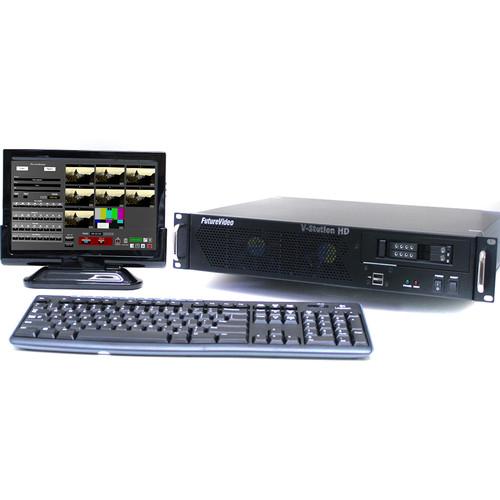 Contents of the user manual for the FutureVideo V-Station HD Studio8 Production DVR
- Product category: Recorders & Duplication FutureVideo
- Brand: FutureVideo
- Description and content of package
- Technical information and basic settings
- Frequently asked questions – FAQ
- Troubleshooting (does not switch on, does not respond, error message, what do I do if...)
- Authorized service for FutureVideo Recorders & Duplication
|
User manual for the FutureVideo V-Station HD Studio8 Production DVR contain basic instructions
that need to be followed during installation and operation.
Before starting your appliance, the user manual should be read through carefully.
Follow all the safety instructions and warnings, and be guided by the given recommendations.
User manual is an integral part of any FutureVideo product,
and if it is sold or transferred, they should be handed over jointly with the product.
Following the instructions for use is an essential prerequisite for protecting
health and property during use, as well as recognition of liability on the part of the manufacturer
for possible defects should you make a warranty claim. Download an official FutureVideo user manual in which you will find instructions on how to install, use, maintain and service your product.
And do not forget – unsuitable use of a FutureVideo product will considerably shorten its lifespan!
|
Product description The FutureVideo V-Station HD Studio8 Production DVR is a rack-mount multi-channel HD DVR with 8 full 1080p60 recording channels using 3G-SDI/HD-SDI inputs. It's suitable for projects where you need to do either independent or isolated 8 channel recording with separate logging for each video channel. The DVR can also be used for synchronized recording with live-switching and streaming (via HDMI output).
With 9 full video track recording, the DVR can create the live mix track and still have the 8 channels of the original recordings to re-edit later with your NLE. It has all the capabilities to simultaneously record 8 3G/HD SDI cameras in full HD 1080p60 resolution (at up to 30 Mb/s per channel) with a total of 320 hours of recording time. Multi-Stream and Stream Line-Cut to Facebook Live and YouTube Live - Built-in multi-streaming technology enables up to 4 camera feeds being recorded to be streamed. Destinations may be different. The line-cut may be streamed to YouTube Live or Facebook Live. You can also upload your project to your FTP site or to YouTube immediately after the shoot with Studio8's built-in uploader.
Built-in B-Roll Media Player - The DVR features its own B-Roll media player for playing back graphics or videos you can record on the DVR in a live shoot or use for presentation or cue card to a studio monitor
Redundant Recording - With a dual set of 1 TB HDDs for redundant recording, the DVR safely ensures there is a backup of your sessions in case one drive should fail
Log Events as They Happen or Afterwards - Enter markers and notes for each angle as an event occurs and find the exact frame upon playback with the built-in Media player
Flexible User Interface - Use either a 10" (optional) or 24" touchscreen (optional) and/or standard PC monitor. Use one, two, or even 3 monitors to easily see all your control and video
Multi-View Player/Rough-Cut Editor - With the optional V-Station HD Studio Companion software, you can play back all 8 video tracks in synchronized mode without re-encoding or transferring to an NLE system. You can re-create the shoot, and cut as you play, creating as many different rough-cuts
In the Box FutureVideo V-Station HD Studio8 Production DVR Wired Illuminated Mechanical Keyboard Wireless Mouse 8 x SMA to BNC Flex Cable Adapters Ethernet Cable Limited 1-Year Warranty Table of Contents
|
Upload User Manual
Have you got an user manual for the FutureVideo V-Station HD Studio8 Production DVR in electronic form? Please send it to us and help us expand our library of instruction manuals.
Thank you, too, on behalf of other users.
To upload the product manual, we first need to check and make sure you are not a robot. After that, your "Submit Link" or "Upload File" will appear.
Technical parametersFutureVideo Studio8 Specs | Video Inputs | 8 x 3G/HD/SDI (back panel) | | Embeddable Audio | 16 embedded, 1/8" / 3.5 mm stereo phone jack | | Video Output | Program: 1 x HDMI (back panel) | | Audio Output | 2 (1 x 1/8" / 3.5 mm stereo phone jack) | | USB | 2 x USB 2.0 (front panel), 4 x USB 3.0, 2 x USB 2.0 (back panel) | | LAN | 1 x RJ-45 Gigabit network (back panel) | | Control | Monitors: 1 VGA, 1 x DVI, 1 x USB (front panel) | | Audio Line Input | 1 x 1/8" / 3.5 mm stereo
4 additional RCA
4 x 1/8" / 3.5 mm (back panel) | | Mic Input | 1 x 1/8" / 3.5 mm (back panel) | | Audio Line Output | 1 x 1/8" / 3.5 mm (back panel) | | Number of Video Tracks | 9 discrete | | Audio Tracks | 16 (via SDI inputs) | | Video Compression | H.264 / AVC high profile level 4.2 MPG (TS)
MP4 or AVI | | Input Resolutions / Frame Rates | 1920 x 1080 x 60p / 59.94p / 50p / 24
1920 x 1080 x 60i / 59.94i / 50i
1280 x 720 x 60p / 59.94p / 50p
720 x 480 x 60i / 59.94i
720 x 576 x 50i | | Recording Resolution | 1920 x 1080 x 60p / 59.94p / 50p / 24, video encoding bit rate 6 to 30 Mb/s
1920 x 1080 x 60i / 59.94i / 50i, video encoding bit rate 6 to 24 Mb/s
1280 x 720 x 60p / 59.94p / 50p, video encoding bit rate 4 to 24 Mb/s
720 x 480 x 60i / 59.94i, video encoding bit rate 2 to 10 Mb/s
720 x 576 x 50i, encoding video bit rate 2-10 Mb/s | | Video Recording | Redundant Video Recording: Mirrored Raid 1 for safety | | Recording Time | 8 x 40 hours, up to 320 hours with 1 to 8 simultaneous sources at 1080p @ 60 fps, 6 Mb/s | | Audio Compression | AAC or LPCM | | Bit Rate | 96 to 512 k | | Operating System | Windows 7 Professional 64-bit | | System Drive | 120 GB SSD | | CPU | Intel i7 Quad core | | System Memory | 16 GB high speed dual channel memory | | Data Storage | 2 x 2.5" swappable | | Graphics | Intel HD Graphics 4600 | | Power Supply | 115 to 240 VAC, 50/60 Hz | | Power Consumption | 110 W | | Compliance | HDCP | | Dimensions (W x H x D) | 19 x 3.5 x 13.9" (482.6 x 88.9 x 353.06 mm) | | Weight | 34 lb (15.42 kg) |
Rating80% users recommend this product to others. And what about you?

This product has already been rated by 32 owners. Add your rating and experience with the product.
Discussion
 Ask our technicians if you have a problem with your settings,
or if anything is unclear in the user manual you have downloaded.
You can make use of our moderated discussion.
The discussion is public and helps other users of our website who may be encountering similar problems.
Ask our technicians if you have a problem with your settings,
or if anything is unclear in the user manual you have downloaded.
You can make use of our moderated discussion.
The discussion is public and helps other users of our website who may be encountering similar problems.
The discussion is empty - enter the first post
Post a new topic / query / comment:
|
|
|
| Request for user manual |
You can’t find the operation manual you are looking for? Let us know and we will try to add the missing manual:
I’m looking for a manual / Request for manual
Current requests for instruction manuals:
Call Of Duty World War Two For Xbox...
controller stratus XL...
stratus XL...
smart whatch serie S11 42mm...
Allen & Heath SQ-6 manual...
|
| Discussion |
Latest contributions to the discussion:
AEW R 4100
Name: MAURICIO ANGARITA
Audio-Technica AEW-R4100 UHF Diversity Receiver for
AEW R 4100 has the mute function blocked and does not allow audio to pass. I tried several times to turn off the mute from the transmitter but it does nothing, the mute stays on. Solution?
Thank you...
Instructions for assembling the 2015 Forecast Image Master Consoles GC3-A
Name: mike elam
Forecast Consoles GC3-A ImageMaster Editing Console
Looking for instructions for assembling this console. ...
EMPTY TONER ERROR MESSAGE AFTER REPLACING TONER
Name: LINDA BAD YELLOW EYES
Brother TN223BK Standard-Yield Toner
I HAD TO CHANGE OUT ALL THREE TONERS DUE TO LEAKS IN THE YELLOW AND CYAN. AFTER I REPLACED THEM, THE MACHINE KEEPS GIVING ME AN EMPTY TONER ERROR MESSAGE. HELP!!...
PS480D 20/24 pin Switching 480W Power Supply
Name: swkargo
Logisys 480W Power Supply
This item states in can run -5vdc .It is NOT listed on the board or I beleive is r4 is missing the resitior. Any body have thid issue. Shawn
...
Help needed
Name: Ann Carter
SanDisk 1TB Extreme Portable USB 3.1
When I click the link to download the user manual for my Sandisk Extreme external hard drive, it gives me the manual for the LG Cricket. Can you please change the link so I can download the Sandisk manual and begin using this drive? Thank you....
|
|