|
User Manual for Glyph Technologies Triplicator Backup Device with FireWire 800, USB 2.0, and eSATA Ports Click to enlarge the picture
 Contents of the user manual for the Glyph Technologies Triplicator Backup Device with
- Product category: External Hard Drive Accessories Glyph Technologies
- Brand: Glyph Technologies
- Description and content of package
- Technical information and basic settings
- Frequently asked questions – FAQ
- Troubleshooting (does not switch on, does not respond, error message, what do I do if...)
- Authorized service for Glyph Technologies External Hard Drive Accessories
 |
User manual for the Glyph Technologies Triplicator Backup Device with contain basic instructions
that need to be followed during installation and operation.
Before starting your appliance, the user manual should be read through carefully.
Follow all the safety instructions and warnings, and be guided by the given recommendations.
User manual is an integral part of any Glyph Technologies product,
and if it is sold or transferred, they should be handed over jointly with the product.
Following the instructions for use is an essential prerequisite for protecting
health and property during use, as well as recognition of liability on the part of the manufacturer
for possible defects should you make a warranty claim. Download an official Glyph Technologies user manual in which you will find instructions on how to install, use, maintain and service your product.
And do not forget – unsuitable use of a Glyph Technologies product will considerably shorten its lifespan!
|
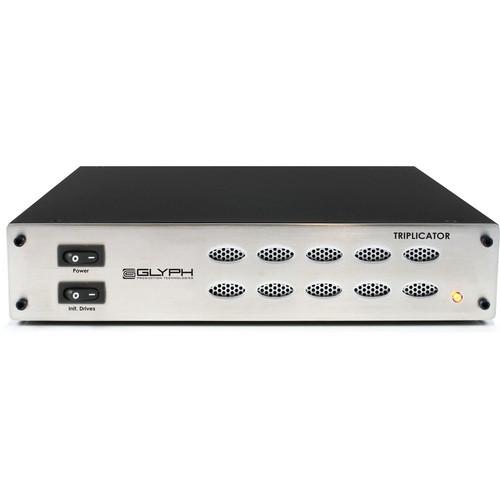
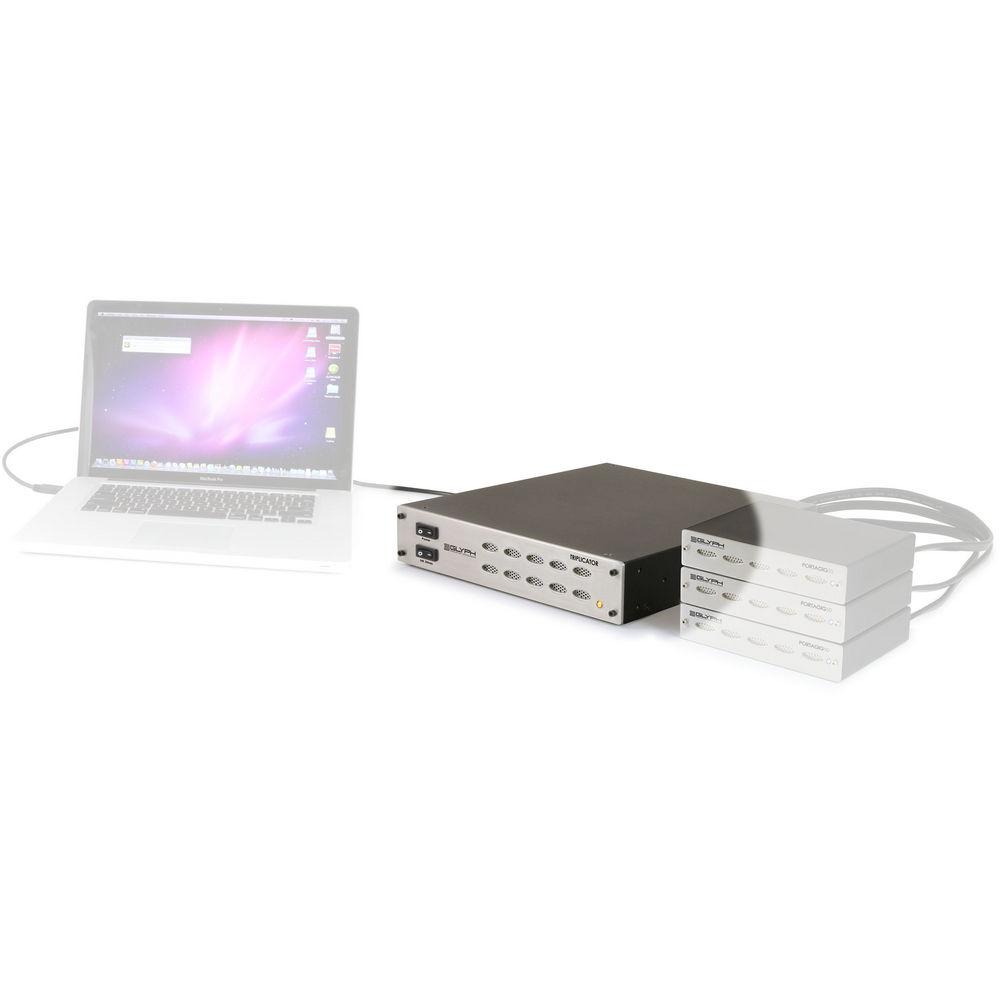
Product description If you have limited time and need multiple copies of your data, the Triplicator Backup Device with FireWire 800, USB 2.0, and eSATA Ports from Glyph Technologies is an extremely simple go-between for backing up data from your computer to multiple external hard drives all at once. No need to worry about copying data from your computer one hard drive at a time. The Triplicator features three eSATA ports for connecting up to three external hard disk or solid state drives of any capacity.* These drives will need to have an eSATA port. Once your drives are connected to the Triplicator, you can use the Triplicator's USB 2.0, FireWire 800, or eSATA host ports for connecting it to your computer. Thereafter, you can transfer data from your computer to up to three drives in one go. Plus, after data transfers, you can turn off your drives and the Triplicator and turn them all on again without data loss. The data that you saved on the drives will be mountable on your computer in case you want to access and explore it. With a hassle-free user-interface, an included carrying case, and a generous warranty, the Triplicator is an exceptional buy. It is compatible with Windows and Mac computers. Note: Connecting drives of the same capacity is recommended if you want to maximize storage space. Instead, if you connect drives of mixed capacities, the Glyph will only transfer data up to the size of the smallest drive - Easy to Use
- To get started with the Triplicator, follow four simple steps:
1. Connect two or three drives to Triplicator's eSATA device ports
2. Connect the Triplicator to your computer via FireWire 800, USB or eSATA
3. Power on drives and Triplicator. LED tells you number of drives attached
4. Copy data - the destination is seen as one drive through the Triplicator - Connections
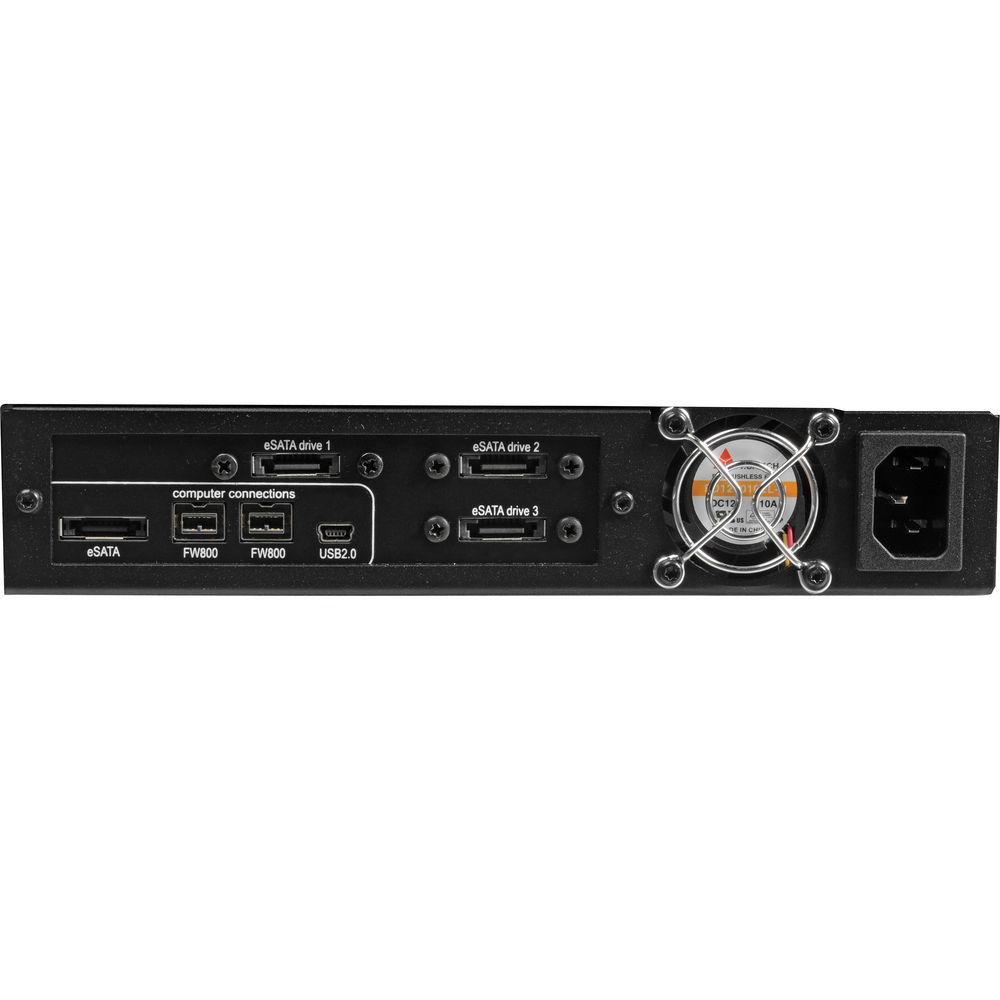
- Connect to your computer via eSATA, FireWire or USB, using any of the Triplicator's ports marked "computer connections." The target drives are connected to the Triplicator via eSATA cables only, using the ports marked "eSATA drive 1", "eSATA drive 2", or "eSATA drive 3." The Triplicator supports any eSATA connected drives, such as hard disk drives and solid state drives
- User Interface
- Triplicator's user interface also provides important information during the copy process. The front panel includes a button designed to guard against unintended drive initialization. The first time you power on the Triplicator, the blue LED blinks to indicate that button press is required. On button press, the drives initialize and the blue LED goes to solid. After a few seconds a volume will be visible on your computer screen. Format this volume using your operating system utility, and you're ready to go. After the Triplicator has initialized the drives, the red LED pattern blinks to show the number of attached drives. If no drives are attached, the LED goes solid red. If a discovered drive disappears in the course of operation, it goes solid red
- In Use
- You can use the Triplicator volume as you would use the volume on any drive. However, when you copy data to the Triplicator volume, the data will be copied to all target drives at the same time. Once you are done working with the drives, you can unmount the volume just like any external drive, and connect the target drives individually to a computer. You will see that the same data is on each drive
- Remountable!
- Once you've copied data to your drives, using the Triplicator, the remount function allows you to turn off those drives and the Triplicator without losing all your data. Once you turn on the drives and the Triplicator, you will still be able to access and inspect the data on these drives via your computer* 1
Please Note: Data on the drives cannot be changed independently between power-ups. Triplicator does not support synchronizing data on the drives if the data has been changed when connected directly to a computer. Once the data on any drive has been changed, it cannot be brought back and included in a Triplicator drive set close - Drive Capacities
- Glyph recommends that all the drive capacities should be the same to maximize your storage space, but you can mix drives of different capacities. Here's the difference between using drives of the same capacity and drives of different capacities: If you connect three 500GB drives, the volume will be 500GB, because the same data is copied to all drives. If you connect two 500GB drives and one 250GB drive, the capacity will be equal to the smallest drive, so total capacity will be 250GB
- A Cool Drive is a Healthy Drive
- The Triplicator uses a quiet internal fan for maximum airflow and proper cooling. The case is designed with front-panel ventilation holes to draw cool air in, while exhausting warm air out the back - critical to the performance and reliability of the components
- Professional Carrying Case
- Included is an impact-resistant hard-molded plastic carrying case to protect your valuable work and your Triplicator. The case is foam-lined and has room for your accessory cables
- Nobody Likes Wall-Warts
- Wall-warts are easily misplaced, or accidentally unplugged from the enclosure, and take up valuable outlet space. The Triplicator uses an industry-standard power cord and pro-quality internal power supply for the most efficient and reliable power source possible
- Comes with a 3-year limited warranty and also a 1-year advance replacement warranty (the latter is only for the 48 states in the continental U.S.)
- Fits into a Rack Mount
- If you purchase a single-rack kit from Glyph, you can fit the Triplicator into a 1U rack mount
UPC: 691450000629 In the Box Glyph Technologies Triplicator Backup Device with FireWire 800, USB 2.0, and eSATA Ports 9-Pin FireWire 800 Cable for Host Connection IEC Power Cable 3 x 1.5' eSATA Cables for Target Drive Connection 3' eSATA Cable for Host Connection 3-Year Warranty 1-Year Advance Replacement (US Continental 48 States Only) Table of Contents
|
Upload User Manual
Have you got an user manual for the Glyph Technologies Triplicator Backup Device with FireWire 800, USB 2.0, and eSATA Ports in electronic form? Please send it to us and help us expand our library of instruction manuals.
Thank you, too, on behalf of other users.
To upload the product manual, we first need to check and make sure you are not a robot. After that, your "Submit Link" or "Upload File" will appear.
Technical parametersGlyph Technologies TRIP-02 Specs | Ports | Host Computer Connectivity:
1x eSATA 1x FireWire 800 (IEEE 1394b) - Two 9-pin ports
1x USB 2.0 Hi-speed (device-side) port
Target Drive Connectivity
3x eSATA | | Drive Types Supported | Hard Disk or Solid State Drives with an eSATA interface of any capacity | | Data Transfer Rate | Up to 3 Gbit/s (300MB/sec) with the eSATA port | | Compatible Operating Systems | Mac OS 8.6, 9.X, 10.X
Microsoft Windows 98SE, ME, 2000, XP, Vista, 7 | | Power Supply | Internal Universal 100-240v 50/60 Hz | | Dimensions (HxWxD) | 1.7 x 8.6 x 9.5" / 4.3 x 21.8 x 24.1 cm | | Weight | 3 lb / 1.4 kg | | | | Package Weight | 4.5 lb | | Box Dimensions (LxWxH) | 15.4 x 13.2 x 4.6" |
Rating70% users recommend this product to others. And what about you?

This product has already been rated by 98 owners. Add your rating and experience with the product.
Discussion
 Ask our technicians if you have a problem with your settings,
or if anything is unclear in the user manual you have downloaded.
You can make use of our moderated discussion.
The discussion is public and helps other users of our website who may be encountering similar problems.
Ask our technicians if you have a problem with your settings,
or if anything is unclear in the user manual you have downloaded.
You can make use of our moderated discussion.
The discussion is public and helps other users of our website who may be encountering similar problems.
The discussion is empty - enter the first post
Post a new topic / query / comment:
|
|
|
| Request for user manual |
You can’t find the operation manual you are looking for? Let us know and we will try to add the missing manual:
I’m looking for a manual / Request for manual
Current requests for instruction manuals:
Call Of Duty World War Two For Xbox...
controller stratus XL...
stratus XL...
smart whatch serie S11 42mm...
Allen & Heath SQ-6 manual...
|
| Discussion |
Latest contributions to the discussion:
AEW R 4100
Name: MAURICIO ANGARITA
Audio-Technica AEW-R4100 UHF Diversity Receiver for
AEW R 4100 has the mute function blocked and does not allow audio to pass. I tried several times to turn off the mute from the transmitter but it does nothing, the mute stays on. Solution?
Thank you...
Instructions for assembling the 2015 Forecast Image Master Consoles GC3-A
Name: mike elam
Forecast Consoles GC3-A ImageMaster Editing Console
Looking for instructions for assembling this console. ...
EMPTY TONER ERROR MESSAGE AFTER REPLACING TONER
Name: LINDA BAD YELLOW EYES
Brother TN223BK Standard-Yield Toner
I HAD TO CHANGE OUT ALL THREE TONERS DUE TO LEAKS IN THE YELLOW AND CYAN. AFTER I REPLACED THEM, THE MACHINE KEEPS GIVING ME AN EMPTY TONER ERROR MESSAGE. HELP!!...
PS480D 20/24 pin Switching 480W Power Supply
Name: swkargo
Logisys 480W Power Supply
This item states in can run -5vdc .It is NOT listed on the board or I beleive is r4 is missing the resitior. Any body have thid issue. Shawn
...
Help needed
Name: Ann Carter
SanDisk 1TB Extreme Portable USB 3.1
When I click the link to download the user manual for my Sandisk Extreme external hard drive, it gives me the manual for the LG Cricket. Can you please change the link so I can download the Sandisk manual and begin using this drive? Thank you....
|
|