|
User Manual for Shure MXC620-F Flush-Mount Conference Unit Click to enlarge the picture
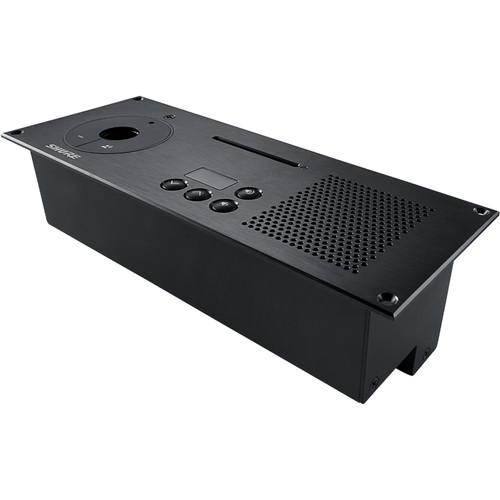 Contents of the user manual for the Shure MXC620-F Flush-Mount Conference Unit
- Product category: Audio Conferencing Shure
- Brand: Shure
- Description and content of package
- Technical information and basic settings
- Frequently asked questions – FAQ
- Troubleshooting (does not switch on, does not respond, error message, what do I do if...)
- Authorized service for Shure Audio Conferencing
|
User manual for the Shure MXC620-F Flush-Mount Conference Unit contain basic instructions
that need to be followed during installation and operation.
Before starting your appliance, the user manual should be read through carefully.
Follow all the safety instructions and warnings, and be guided by the given recommendations.
User manual is an integral part of any Shure product,
and if it is sold or transferred, they should be handed over jointly with the product.
Following the instructions for use is an essential prerequisite for protecting
health and property during use, as well as recognition of liability on the part of the manufacturer
for possible defects should you make a warranty claim. Download an official Shure user manual in which you will find instructions on how to install, use, maintain and service your product.
And do not forget – unsuitable use of a Shure product will considerably shorten its lifespan!
|
Product description The MXC620-F Flush-Mount Conference Unit from Shure makes it easy to identify meeting attendees when participation must be documented. It mounts flush in the table surface for a streamlined appearance and can be used by a chairman or a delegate with the Microflex Complete Digital Conference System (sold separately).The integrated ID card reader allows standard NFC cards to identify attendees by name, regardless of where they sit. In addition, a speak button provides tactile feedback when pressed, and a surrounding LED illuminates to indicate whether the microphone is active, waiting to speak, or muted.The built-in loudspeaker makes it easy to hear other talkers and external audio sources and mutes automatically when the microphone is activated. A 3.5mm headphone jack with volume control and channel selector provides comfortable listening to interpretation channels or the floor audio through headphones or earphones.Other features include: a 10-pin modular microphone connector that accommodates a MXC-series gooseneck microphone and can be locked with a hex key to prevent unauthorized removal. The MXC620-F connects to the DIS-CCU central control unit (sold separately) using shielded Cat 5e network cables. One cable carries both audio and control signals and delivers power to the conference unit. - Mounts flush in the table surface for streamlined appearance
- Can be used by a chairman or delegate
- Integrated NFC ID card reader allows attendee identification
- Speak and mute/function buttons with LED status indicators
- Built-in loudspeaker mutes automatically when microphone is activated
- 3.5mm headphone jack with volume control and channel selector
- Compatible with MXC-series gooseneck microphones
- The 10-pin modular microphone connector accommodates MXC-series gooseneck microphones and can be locked to prevent unauthorized removal
In the Box Shure MXC620-F Flush-Mount Conference Unit Limited 2-Year Warranty Table of Contents
|
Upload User Manual
Have you got an user manual for the Shure MXC620-F Flush-Mount Conference Unit in electronic form? Please send it to us and help us expand our library of instruction manuals.
Thank you, too, on behalf of other users.
To upload the product manual, we first need to check and make sure you are not a robot. After that, your "Submit Link" or "Upload File" will appear.
Technical parametersShure MXC620-F Specs | | | Frequency Response | Channel Selector: 65 Hz to 16 kHz | | Frequency Range | Loudspeaker: 150 Hz to 15 kHz | | Power Consumption | 3.5 W | | Total Harmonic Distortion (THD) | <0.1% | | Signal to Noise Ratio | >90 dBA | | Microphone Connector | 10-Pin | | Headphone Connector | 1/8" / 3.5 mm Female Socket TRS | | | | Local Area Network Interface | 2 x RJ45 Female Sockets (In/Out) | | | | Material of Construction | Anodized Aluminum (Top) | | Installation | Flush Mounting | | Temperature Range | 41 to 104°F / 5 to 40°C | | Dimensions (H x W x D) | 3.5 x 9.3 x 2.9" / 9.0 x 23.5 x 7.4 cm | | Weight | 31.7 oz / 900 g |
Rating80% users recommend this product to others. And what about you?

This product has already been rated by 17 owners. Add your rating and experience with the product.
Discussion
 Ask our technicians if you have a problem with your settings,
or if anything is unclear in the user manual you have downloaded.
You can make use of our moderated discussion.
The discussion is public and helps other users of our website who may be encountering similar problems.
Ask our technicians if you have a problem with your settings,
or if anything is unclear in the user manual you have downloaded.
You can make use of our moderated discussion.
The discussion is public and helps other users of our website who may be encountering similar problems.
The discussion is empty - enter the first post
Post a new topic / query / comment:
|
|
|
| Request for user manual |
You can’t find the operation manual you are looking for? Let us know and we will try to add the missing manual:
I’m looking for a manual / Request for manual
Current requests for instruction manuals:
Call Of Duty World War Two For Xbox...
controller stratus XL...
stratus XL...
smart whatch serie S11 42mm...
Allen & Heath SQ-6 manual...
|
| Discussion |
Latest contributions to the discussion:
AEW R 4100
Name: MAURICIO ANGARITA
Audio-Technica AEW-R4100 UHF Diversity Receiver for
AEW R 4100 has the mute function blocked and does not allow audio to pass. I tried several times to turn off the mute from the transmitter but it does nothing, the mute stays on. Solution?
Thank you...
Instructions for assembling the 2015 Forecast Image Master Consoles GC3-A
Name: mike elam
Forecast Consoles GC3-A ImageMaster Editing Console
Looking for instructions for assembling this console. ...
EMPTY TONER ERROR MESSAGE AFTER REPLACING TONER
Name: LINDA BAD YELLOW EYES
Brother TN223BK Standard-Yield Toner
I HAD TO CHANGE OUT ALL THREE TONERS DUE TO LEAKS IN THE YELLOW AND CYAN. AFTER I REPLACED THEM, THE MACHINE KEEPS GIVING ME AN EMPTY TONER ERROR MESSAGE. HELP!!...
PS480D 20/24 pin Switching 480W Power Supply
Name: swkargo
Logisys 480W Power Supply
This item states in can run -5vdc .It is NOT listed on the board or I beleive is r4 is missing the resitior. Any body have thid issue. Shawn
...
Help needed
Name: Ann Carter
SanDisk 1TB Extreme Portable USB 3.1
When I click the link to download the user manual for my Sandisk Extreme external hard drive, it gives me the manual for the LG Cricket. Can you please change the link so I can download the Sandisk manual and begin using this drive? Thank you....
|
|